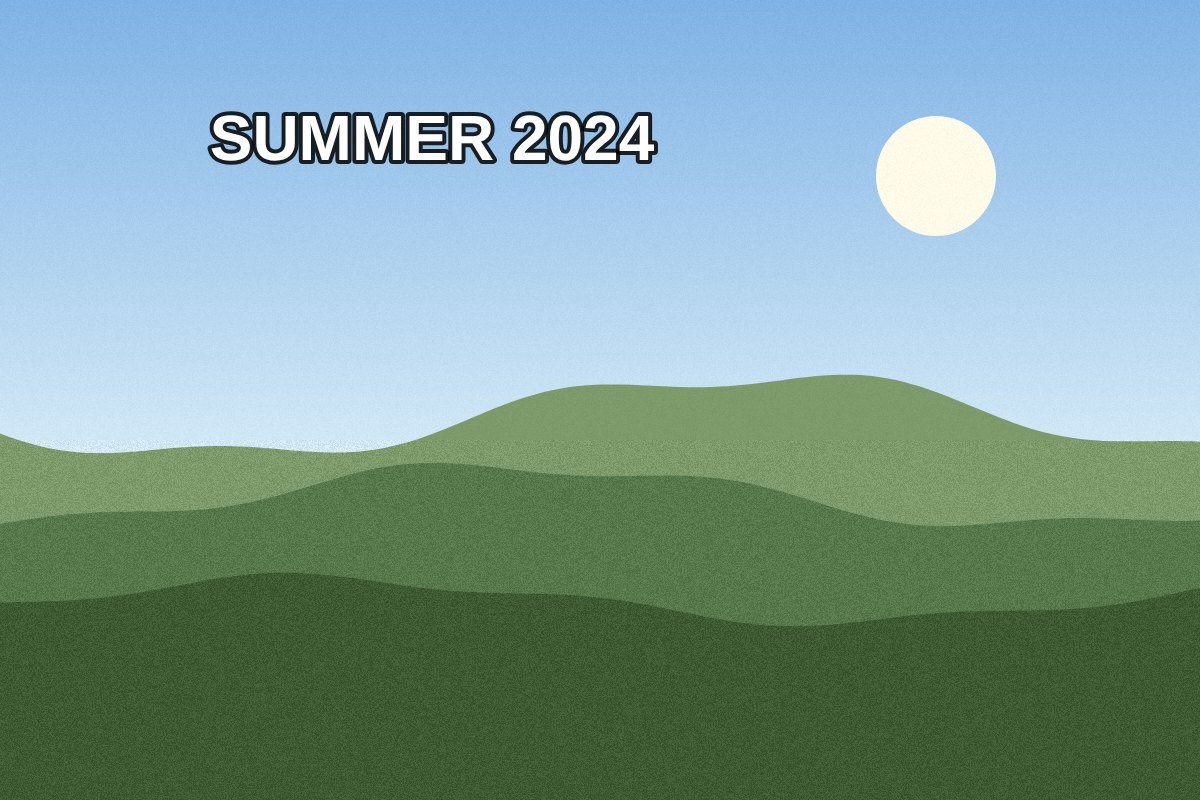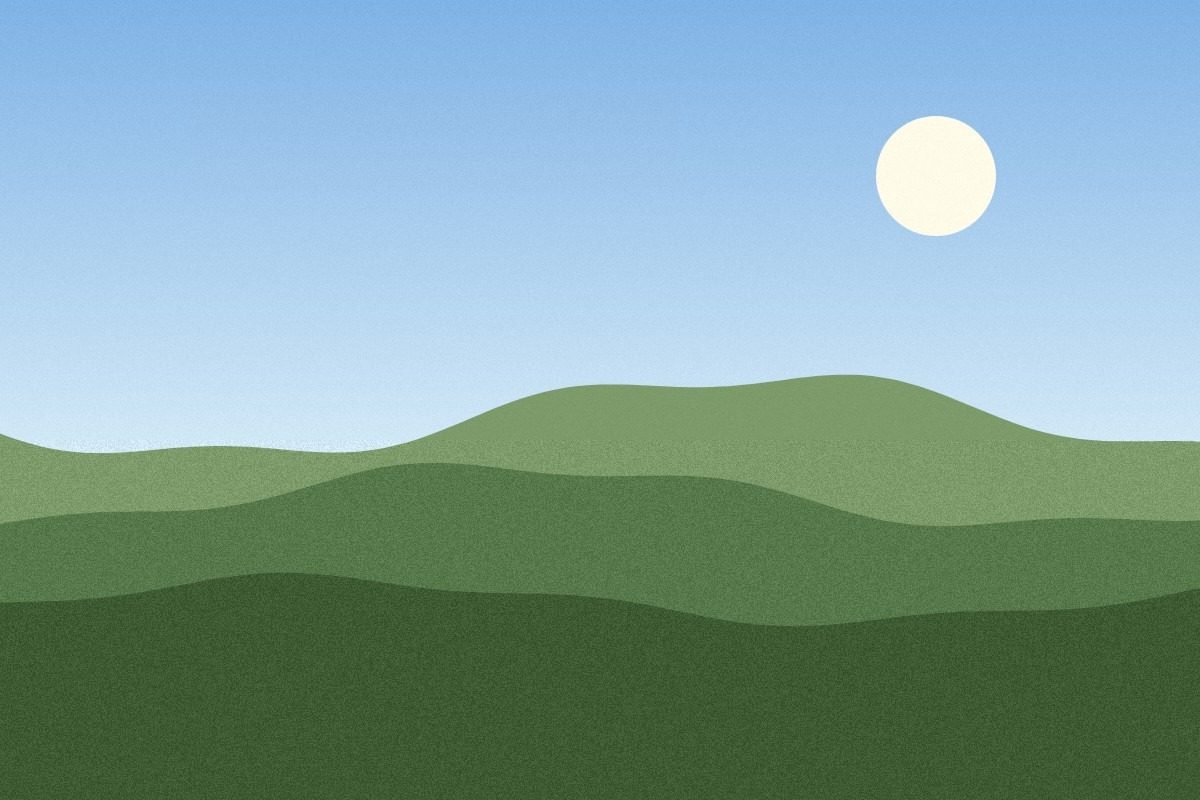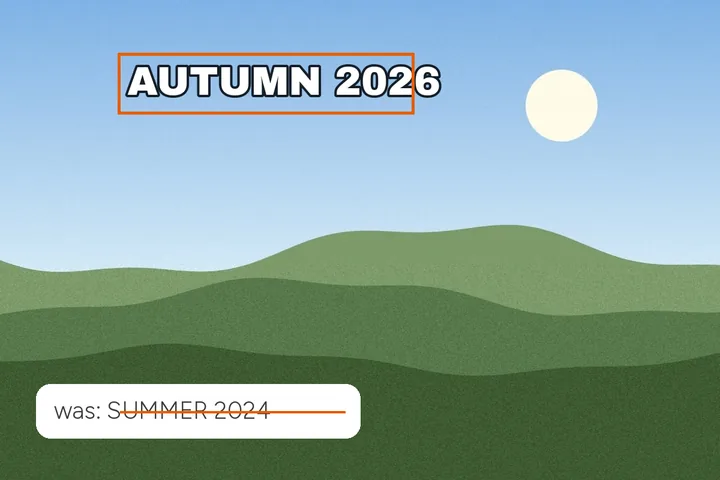
Remove first, then retype
Typing over old words never works: the old letters show at the edges of the new ones. So the region is cleared first, with the same fills and the same post-run check as everywhere on this site, and only then is the new text laid over clean ground.
The text layer starts at the old lettering's left edge and baseline, at a size whose capitals match the old letters' height. Multiple lines, alignment and letter spacing are there for when the new words are longer than the old ones.
This is for your own posters, slides, screenshots and photos. Changing the words on identity documents, certificates or anything someone else will rely on is not a use this site supports.
Where this mode goes wrong
- Unusual or hand-lettered type.None of the bundled faces will look like a script logo; load the real font if you have it.
- Text on curved or perspective surfaces.The layer is flat and can only be rotated, not bent or foreshortened.
What stays on this device
The fonts are files on this site, not a font service. Typed text never leaves the tab and is not stored.
Questions about retyping
Will the new text use the same font?
Not unless you have it. Fonts are matched by shape, not identified: the old letters' stroke width, letter width and spacing pick the closest of seven open-licence faces bundled with this site (sans, serif, condensed, rounded, mono, heavy display and a Devanagari sans), and the panel says why it picked that one. It is labelled closest local font, never same font.
How is the colour chosen?
From the old ink itself, measured before it is removed: the median colour of the pixels the mask took. If an outline of the opposite brightness hugged the letters, an outline of that colour and width is pre-set too.
Can I load my own font file?
Yes — TTF, OTF, WOFF or WOFF2, picked from your device. It is read here, registered for this tab only, and never sent anywhere.
Can I edit the text again before saving?
Yes. The new words are a layer, not pixels, until you save: text, font, size, weight, colour, alignment, spacing, angle, opacity, outline and shadow can all change, and the region under them can be reverted and re-filled without retyping.
Where the job goes next
- Remove a caption from a photo Top and bottom caption bands, outlined meme letters taken whole, and a strip filled or cropped off when you tick it.
- AI text remover One press: each ticked region gets the fill its ground calls for, the on-device model only on texture and only if you allow it.
- ImageTextRemover Draw a box over the lettering, keep the boxes you meant, and get the picture back with the ground painted across them.